
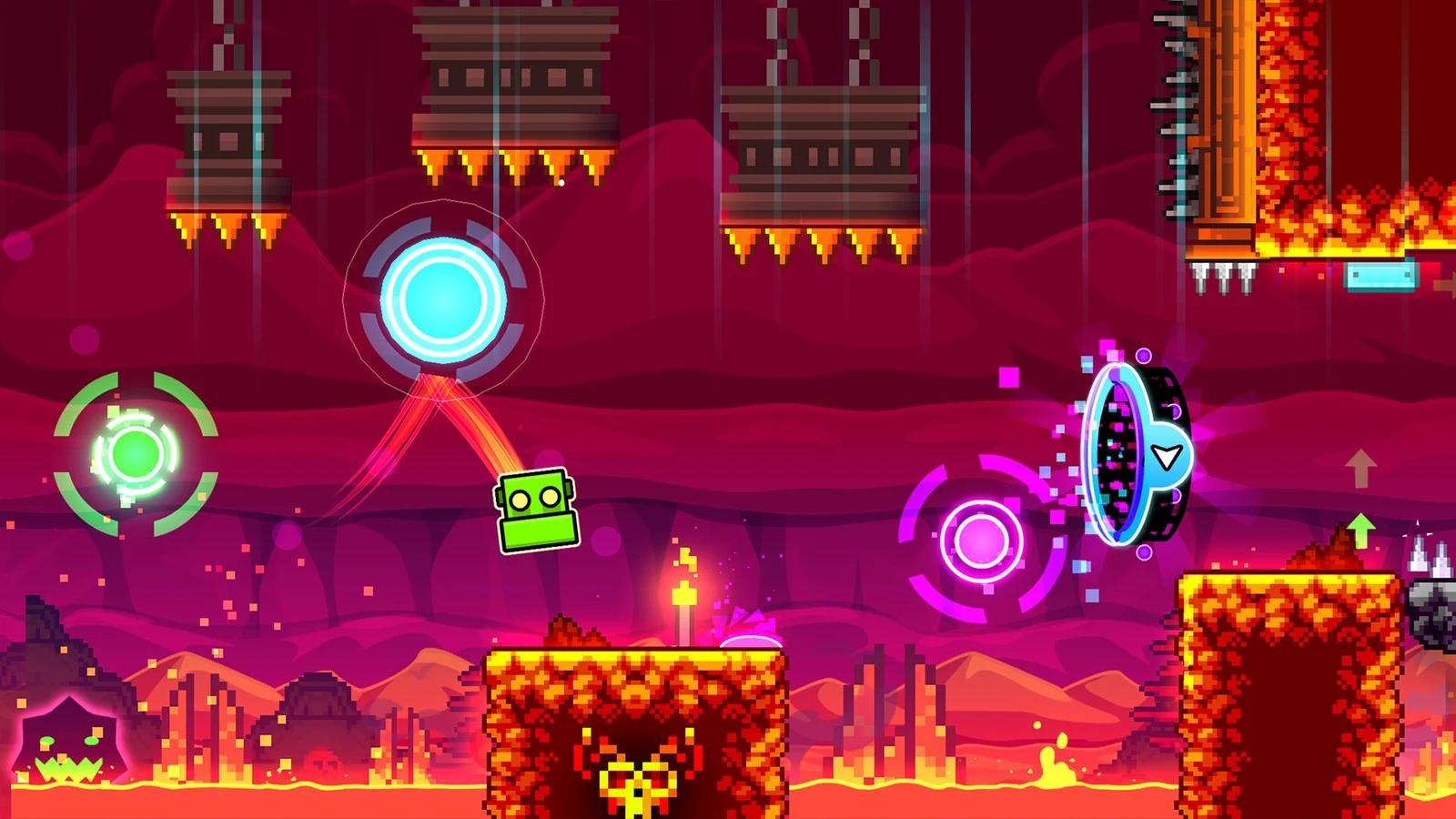
Activating Practice Mode
The mode is turned on with the green gem button in the pause menu. Inside the mode, checkpoints may be positioned at will, and a crash returns the icon to the last one placed rather than sending it back to the start of the level.
Automatic checkpoints
Checkpoints appear on their own at intervals unless the Auto-Checkpoints option is disabled in the pause menu.
Step-by-Step Guide
Switch the mode on
Open the pause menu and select the green gem button to enable Practice Mode. From that point a crash brings the icon back to the last checkpoint instead of restarting the level.
Adjust automatic generation
Checkpoints are generated automatically at intervals by default; to stop that, switch off Auto-Checkpoints in the pause menu.
Use the Steam keys
On Steam, the Z key places a checkpoint and the X key removes one.